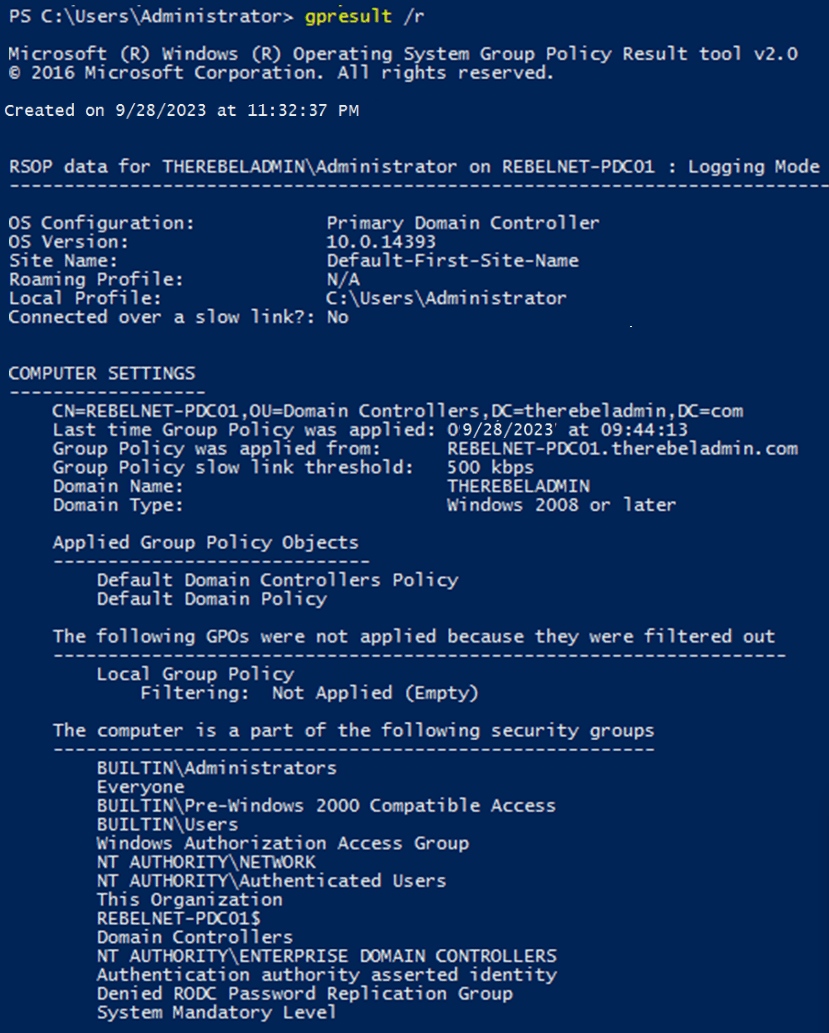
A Group Policy Object (GPO) is a set of policies that can be applied by the system administrator across the domain. Multiple GPOs can be applied to different users, computers, and groups. Each GPO contains a specific set of policies that are automatically applied to the Organization Unit (OU) it is linked with.
This article provides concise descriptions of the Windows PowerShell cmdlets that are designed for administering Group Policy in Windows Server and Windows client environments with Remote Server Administration Tools (RSAT) installed. RSAT includes both the Group Policy Management Console (GPMC) and the Group Policy cmdlets.
You must install the Group Policy PowerShell Module before performing any other tasks. This module is part of the Remote Server Administration Tools (RSAT).
Make sure that the Group Policy Management Tools are installed.
Install-Module grouppolicy
Import-Module grouppolicy
To install all RSAT tools using PowerShell with Administrator privileges, run the following cmdlet in an elevated PowerShell instance:
Get-WindowsCapability -Name RSAT* -Online | Add-WindowsCapability -Online
Install-WindowsFeature -Name GPMC
To List all the Group Policies in your domain :
get-GPO -All 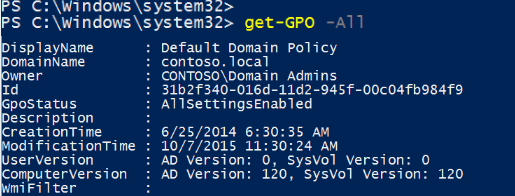
To Format all the Group Policies in Table:
get-GPO -All | Select DisplayName, Id, GpoStatus, CreationTime, ModificationTime | sort-object DisplayName | Format-Table
To create a GPO report in HTML or XML for a single GPO, we can either use the GPO Name or the GPO GUI ID.
Using Name
To create a GPO report in HTML for a single GPO using its name, use the following syntax in PowerShell:
Get-GPOReport -Name ‘[NameOfGPO]’ -ReportType ‘HTML’ -Path ‘[PathToSaveFile
Get-GPOReport -Name 'Google Chrome' -ReportType html -Path "C:\Pilot\GroupPoliciesReport.html"The same file can also be exported as XML
Get-GPOReport -Name 'Google Chrome' -ReportType Xml -Path "C:\Pilot\GroupPoliciesReport.html"To display the output file in Powershell , you can use the below cmd
Invoke-Item -Path "C:\Pilot\GroupPoliciesReport.html"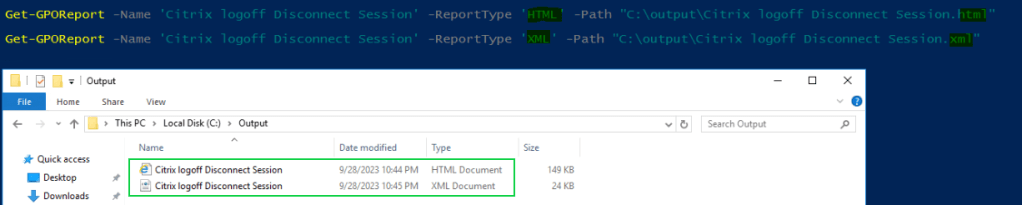
Using GUID
To create a GPO report in HTML for a single GPO using its GUID, use the following syntax in PowerShell:
Get-GPOReport -GUID ‘[Value of GUID]’ -ReportType ‘HTML’ -Path ‘[PathToSaveFile
Get-GPOReport -Guid 'bf66c962-2dd7-432f-8214-89b4c02bd333' -ReportType html -Path "C:\Output\Citrix logoff Disconnect Session-GUID.html"The same file can also be exported as XML
Get-GPOReport -Guid 'bf66c962-2dd7-432f-8214-89b4c02bd333' -ReportType Xml -Path "C:\Output\Citrix logoff Disconnect Session-GUID.xml"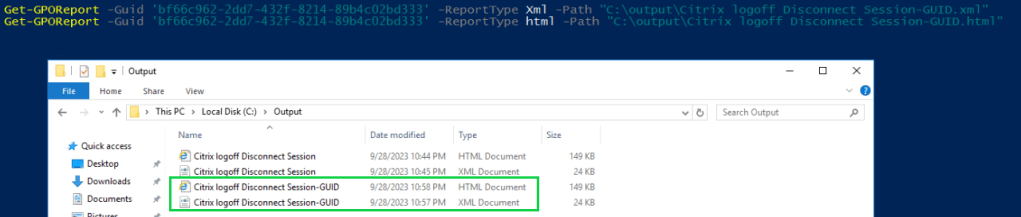
To create a GPO report in HTML or XML which contains the details for all the GPOs applied within your domain
Get-GPOReport -All -ReportType Xml -Path "C:\Output\All-GPO-Report-Output.html"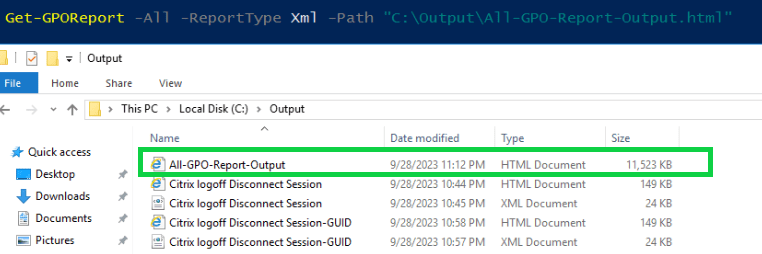
Instead of exporting these reports we can also see it directly in the powershell using below cmds
Get-GPOReport -All -ReportType Xml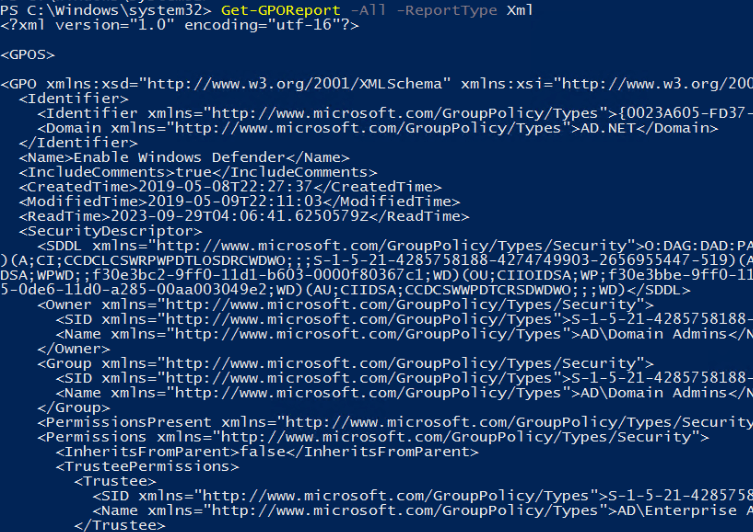
The above format might not be so userfriendly to read, so you might even use GPResult.
To generate an HTML report using GPResult in PowerShell, use the following cmdlet:
GPResult /H "C:\Output\GPResult-Output.html"To generate GPResult in PowerShell window, , use the following cmdlet:
GPResult /R
There are many additional GPO cmds also but, not used very often. It can be found below.
| Backup-GPO | Backs up one GPO or all the GPOs in a domain. |
| Copy-GPO | Copies a GPO. |
| Get-GPInheritance | Gets Group Policy inheritance information for a specified domain or OU. |
| Get-GPO | Gets one GPO or all the GPOs in a domain. |
| Get-GPOReport | Generates a report either in XML or HTML format for a specified GPO or for all GPOs in a domain. |
| Get-GPPermission | Gets the permission level for one or more security principals on a specified GPO. |
| Get-GPPrefRegistryValue | Gets one or more Registry preference items under either Computer Configuration or User Configuration in a GPO. |
| Get-GPRegistryValue | Gets one or more registry-based policy settings under either Computer Configuration or User Configuration in a GPO. |
| Get-GPResultantSetOfPolicy | Gets and writes the RSoP information for a user, a computer, or both to a file. |
| Get-GPStarterGPO | Gets one Starter GPO or all Starter GPOs in a domain. |
| Import-GPO | Imports the Group Policy settings from a backed-up GPO into a specified GPO. |
| Invoke-GPUpdate | Schedules a remote Group Policy refresh on the specified computer. |
| New-GPLink | Links a GPO to a site, domain, or OU. |
| New-GPO | Creates a GPO. |
| New-GPStarterGPO | Creates a Starter GPO. |
| Remove-GPLink | Removes a GPO link from a site, domain or OU. |
| Remove-GPO | Removes a GPO. |
| Remove-GPPrefRegistryValue | Removes one or more Registry preference items from either Computer Configuration or User Configuration in a GPO. |
| Remove-GPRegistryValue | Removes one or more registry-based policy settings from either Computer Configuration or User Configuration in a GPO. |
| Rename-GPO | Assigns a new display name to a GPO. |
| Restore-GPO | Restores one GPO or all GPOs in a domain from one or more GPO backup files. |
| Set-GPInheritance | Blocks or unblocks inheritance for a specified domain or organizational unit. |
| Set-GPLink | Sets the properties of the specified GPO link. |
| Set-GPPermission | Grants a level of permissions to a security principal for one GPO or all the GPOs in a domain. |
| Set-GPPrefRegistryValue | Configures a Registry preference item under either Computer Configuration or User Configuration in a GPO. |
| Set-GPRegistryValue | Configures one or more registry-based policy settings under either Computer Configuration or User Configuration in a GPO. |
In summary, Group Policy Objects (GPOs) are a powerful tool for system administrators to manage policies across a domain. By creating and linking GPOs to specific OUs, administrators can ensure that policies are automatically applied to the appropriate users, computers, and groups. With the use of Windows PowerShell cmdlets and Remote Server Administration Tools (RSAT), GPO administration can be streamlined and made more efficient. Overall, GPOs are an essential part of any Windows Server or Windows client environment.
 Let's Learn Microsoft
Leave a comment