
Active Directory is a directory service developed by Microsoft that is used to store and manage information about network resources, including computers, users, and groups. One of the key benefits of Active Directory is its ability to provide centralized management and authentication for network resources, which can help simplify administration and improve security. In an Active Directory environment, it’s often necessary to identify specific types of resources, such as Windows 10 computers. This can be useful for a variety of reasons, such as troubleshooting issues or planning for upgrades or migrations.
PowerShell is a powerful command-line tool that can be used to interact with Active Directory and perform a wide range of administrative tasks. The Get-ADComputer cmdlet is one such tool that can be used to query Active Directory for computer objects based on various criteria, including operating system.
There are different ways to gather this information. Below are two popular approaches:
- Active Directory Users and Computers(ADUC) or The Directory System Agent (DSA.msc)
- With PowerShell and the Get-ADComputer cmdlet
Active Directory Users and Computers(ADUC) or The Directory System Agent
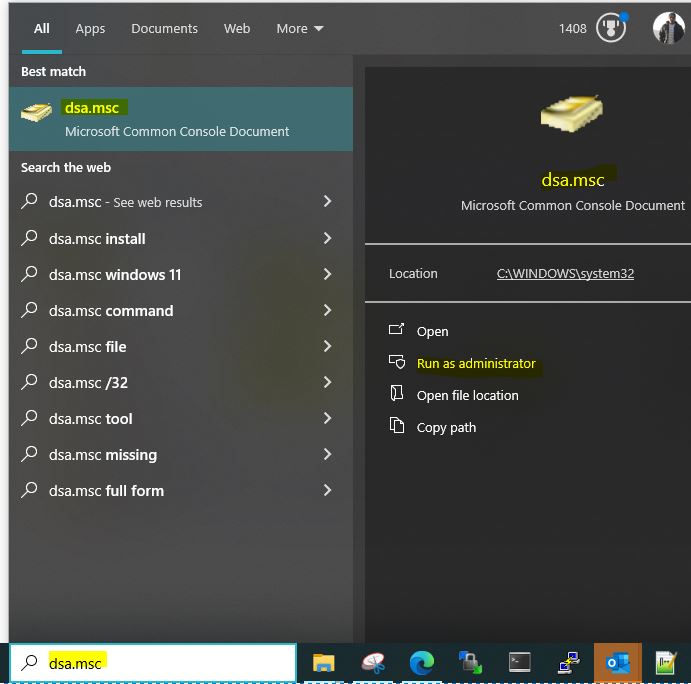
- RDP on one of the Domain Controllers and then launch ADUC by trying dsa.msc in search and then click on Run as Administrator
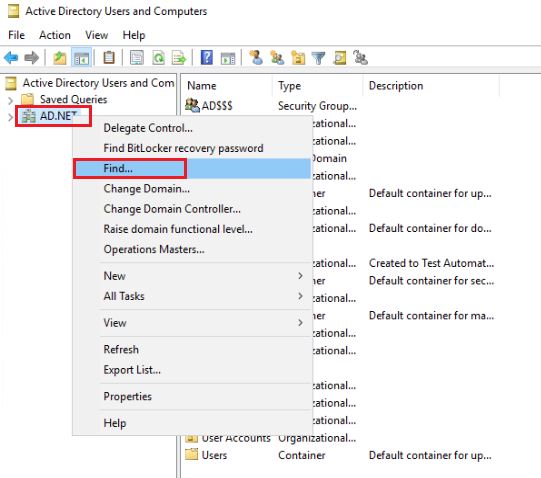
- Click on the domain ex- AD.NET ad then click on Find
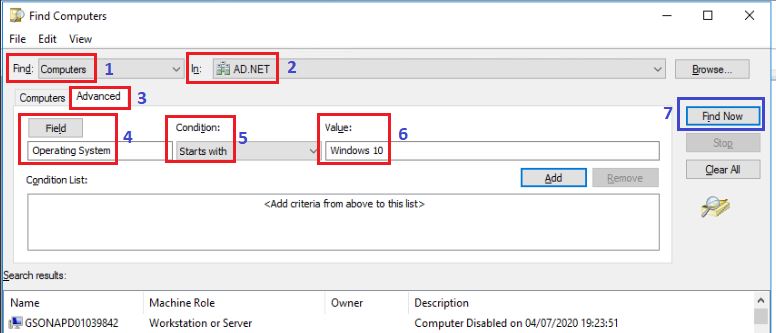
- This will pop up the “Find Computer” window and you need to apply the below filters
- Click on Find Dropdown and select Computers
- Select the domain In as “AD.NET” – In this example
- Click on Advanced tab next to Computers
- Click on Field dropdown and select Operating System
- Selection the Condition as Starts with
- Set the Value as Windows 10
- Now click on Find Now
- The list is populated
The only issue with this approach is that you can see the report but, you can not export it. To address it we can use the PowerShelll option.
With PowerShell and the Get-ADComputer cmdlet
By using the With PowerShell and the Get-ADComputer cmdlet and -Filter parameter and specifying a filter based on the operating system, you can easily find all Windows 10 computers in your Active Directory environment. The command can also be customized to retrieve specific properties of the computers, such as name and operating system version.
Get-ADComputer -Filter {OperatingSystem -like "Windows 10"} -Properties Name, OperatingSystem | Export-Csv -Path C:\Windows10Computers.csv -NoTypeInformation
The output CSV file is of a similar format.

Overall, the ability to quickly and easily identify specific types of resources in an Active Directory environment can be a valuable tool for administrators and IT professionals. If you are interested in leaning the other Variations of Get-ADComputer, please refer my Post Get-ADComputer – Ninja.
 Let's Learn Microsoft
Leave a comment