
This article provides information on checking the license status of Microsoft Teams Rooms devices and highlights the licenses required for resource accounts used with these devices.
- To begin, you can check the license of a few Teams Rooms devices or multiple Microsoft Teams Rooms devices.
It is important to note that:
- Resource accounts assigned with user licenses or Microsoft Teams Shared Device licenses are not compatible with Teams Rooms devices.
- Instead, these resource accounts must be assigned one of the following licenses: Microsoft Teams Rooms Pro, Microsoft Teams Rooms Basic, Microsoft Teams Rooms Standard (legacy), or Microsoft Teams Rooms Premium (legacy).
Furthermore:
- User licenses are not supported for meeting devices.
- Any user licenses assigned to Teams meeting devices must be replaced with an approved Teams Rooms license before July 1, 2023.
- Meeting devices without a Teams Rooms license after this date will have a 90-day grace period until September 30, 2023.
- After the grace period, devices will be blocked from signing in until a Teams Rooms license is assigned.
In addition:
- Microsoft Teams Shared Devices licenses are not compatible with Teams Rooms devices and should not be used.
- Only Teams Rooms Basic or Teams Rooms Pro licenses should be assigned to Teams Rooms devices.
Finally, you have the option to check the license status of resource accounts signed into your Teams Rooms devices. If you have only a few devices, follow the steps provided for checking the license of a few Teams Rooms devices. If you have multiple devices, refer to the steps for checking the license of multiple Microsoft Teams Rooms devices.
To check the license of your Teams Rooms devices, go to the Teams admin center and select the device category (Teams Rooms on Windows, Teams Rooms on Android, or Surface Hubs) you want to view. The inventory list will display the assigned licenses for each device, with the “License” column indicating the Teams Rooms license.
Devices with the Teams Rooms Pro license have full access to all capabilities, while devices with other Teams Rooms licenses can access a subset of features.

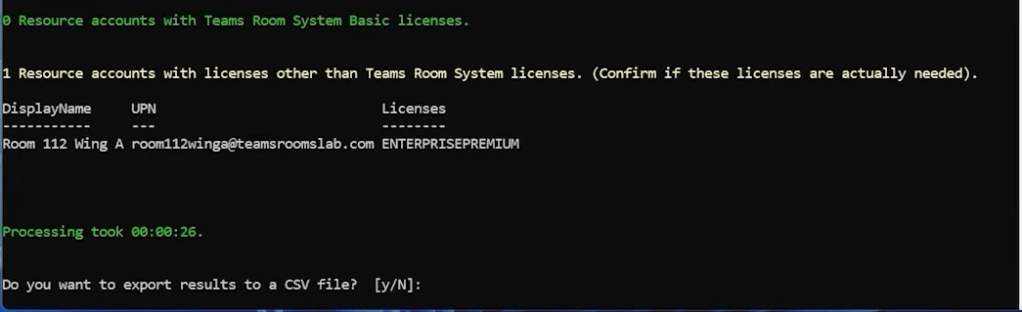
To simplify the process of checking the licenses of multiple Microsoft Teams Rooms devices, a sample script is available. This script provides a list of resource accounts associated with Teams Rooms devices, organized by license type. Unsupported licenses are grouped together for review, and if any resource accounts have unsupported licenses, they will need to be changed to a supported license.
Download the script file from the above link and change the file extension from “.txt” to “.PS1“.
Running the script shows the final summary at the end where you get a prompt to save the output.
 Let's Learn Microsoft
Leave a comment